

> For the complete documentation index, see [llms.txt](https://docs.cloudfactory.com/llms.txt). Markdown versions of documentation pages are available by appending `.md` to page URLs; this page is available as [Markdown](https://docs.cloudfactory.com/projects/projects/dashboard.md).

# Dashboard

In Hasty, we want your workflow to be as smooth and convenient as possible. Therefore, we created the Dashboard feature that allows you to keep track of the whole project and access most of the Hasty capabilities from one place.

You can access it in two different ways:

* First, you can simply click on your project in the workspace environment, and you will be redirected to the project's Dashboard;
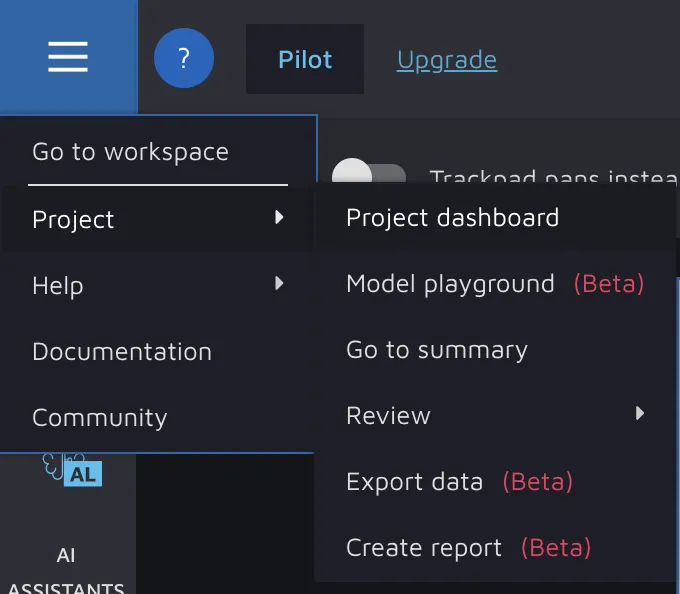
* Second, if you are in the annotation environment, you can get to the Dashboard through the Upper-Left Corner Button => Project => Project dashboard.

<figure><img src="https://wiki.cloudfactory.com/media/pages/docs/userdocs/projects/dashboard/d3eb0c0b26-1684131898/1.webp" alt="" width="563"><figcaption></figcaption></figure>

The ultimate idea of the Dashboard is to step-by-step visualize the different steps in the data flywheel. That is why there are many sections in the Dashboard, each corresponding to some major step or potential substep of the process. To simplify things, let's iteratively cover each section.

### Some general information <a href="#some-general-information" id="some-general-information"></a>

You can find some general information about the project at the top of the page near the Dashboard name ("Your\_Project\_Name Dashboard").

<figure><img src="https://wiki.cloudfactory.com/media/pages/docs/userdocs/projects/dashboard/15b26df831-1684131898/2.webp" alt=""><figcaption></figcaption></figure>

* **Workspace:** The name of the workspace your project is stored in;
* **The number of datasets created:** The total number of datasets across the project. If you click on the datasets word, you will get to the File Manager page;
* **The number of images:** The total number of images in the project across all datasets. If you click on the**images**word, you will get to the File Manager page;
* **The number of users:** The total amount of users that have access to the project. If you click on the**users**word, you will get to the [Users and Roles](about:/docs/userdocs/projects/creating-and-editing-a-project/users-and-roles#users-and-roles) page;
* **Creation date**.

### User guide <a href="#user-guide" id="user-guide"></a>

The first thing you will see in the Dashboard right after the general information is our newest user guide widget that will provide you with instructions on reaching 90% of automation.

<figure><img src="https://wiki.cloudfactory.com/media/pages/docs/userdocs/projects/dashboard/10a1ec9408-1684131898/3.webp" alt=""><figcaption></figcaption></figure>

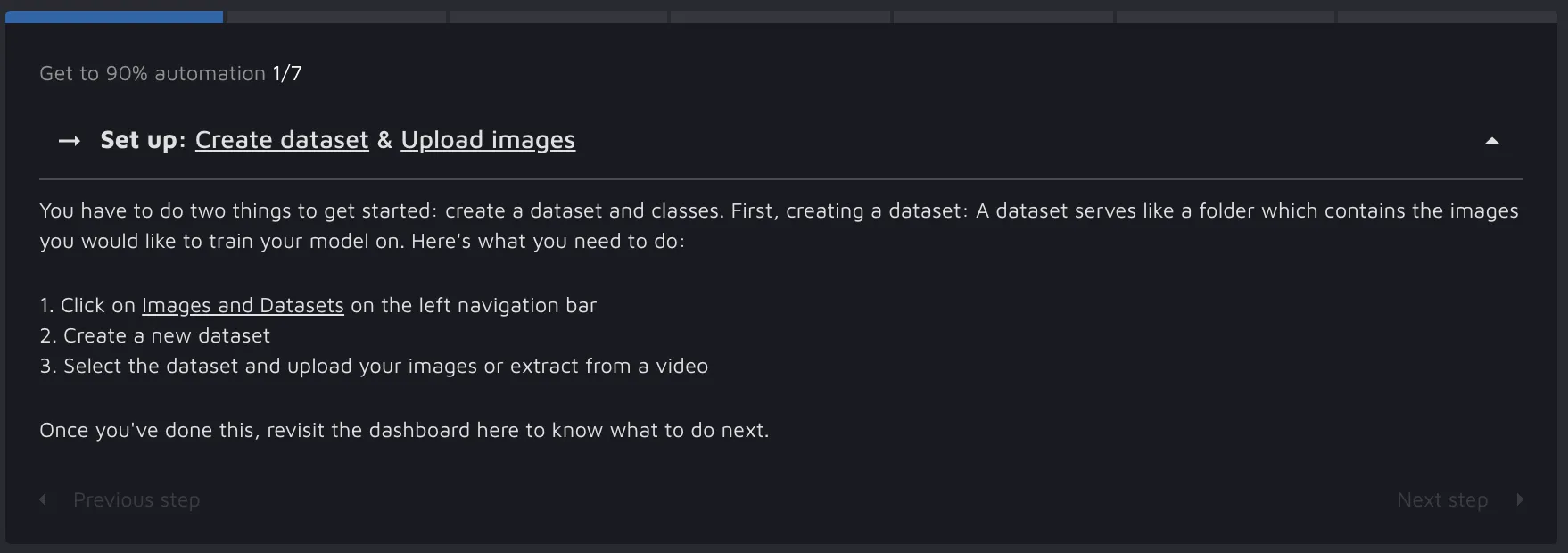
If you are familiar with Hasty, you can easily remove it by clicking on the "**No, thank you**" phrase. Otherwise, we suggest clicking on the "**Let's get started**" button to learn more about Hasty and its capabilities and get a step-by-step guide on how to squeeze every last drop of automation out of the tools we have built.

<figure><img src="https://wiki.cloudfactory.com/media/pages/docs/userdocs/projects/dashboard/bd27dc1cdb-1684131898/4.webp" alt=""><figcaption><p>The first step of the guide</p></figcaption></figure>

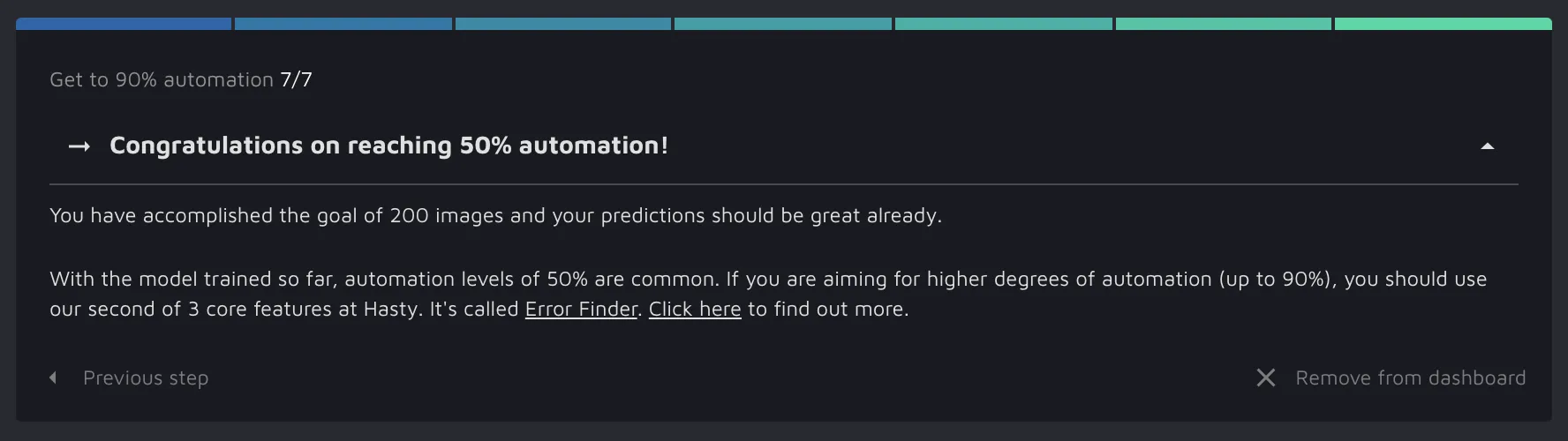
<figure><img src="https://wiki.cloudfactory.com/media/pages/docs/userdocs/projects/dashboard/56a6b29071-1684131898/5.webp" alt=""><figcaption><p>Example of the last step of the guide</p></figcaption></figure>

As soon as you go through the guide, you can permanently remove it from the Dashboard by clicking on the "**Remove from dashboard**" button.

### Annotation & Automation <a href="#annotation-amp-automation" id="annotation-amp-automation"></a>

In the Annotation & Automation section, you can keep track of your annotation progress and check the status of the tools that help you with that - AI Assistants.

So, A\&A consists of two sections:

* Images & Annotations;
* AI Assistants.

#### Images & Annotations <a href="#images-amp-annotations" id="images-amp-annotations"></a>

<figure><img src="https://wiki.cloudfactory.com/media/pages/docs/userdocs/projects/dashboard/45c70ba839-1684131898/6.webp" alt=""><figcaption><p>Example of the Images &#x26; Annotations part</p></figcaption></figure>

From this part of the Dashboard, you can find out:

* **The number of images:** The total number of images in the project across all datasets;
* **The number of images marked as New / In progress / To review / Done / Skipped / Auto-labelled:** The total number of images set to a specific image status;
* **The number of label classes:** The total amount of [label classes](about:/docs/userdocs/projects/creating-and-editing-a-project/classes-and-attributes#label-classes-and-attributes) across datasets;
* **The number of labels created:** The total amount of labels/annotations created throughout the project;
* **The number of tags created:** The total amount of [image tags](about:/docs/userdocs/annotation-environment/manual-and-semi-automated-tools/image-tags#image-tags) across datasets;
* **The number of attributes created:** The total amount of label [attributes](about:/docs/userdocs/projects/creating-and-editing-a-project/classes-and-attributes#attributes) across datasets.

Also, there are two buttons:

* **Start annotating** button will directly lead you to the annotation environment;
* **See full summary and reports** button will lead you to the [Summary](about:/docs/userdocs/projects/creating-and-editing-a-project/project-summary#project-summary) page.

#### AI Assistants <a href="#ai-assistants" id="ai-assistants"></a>

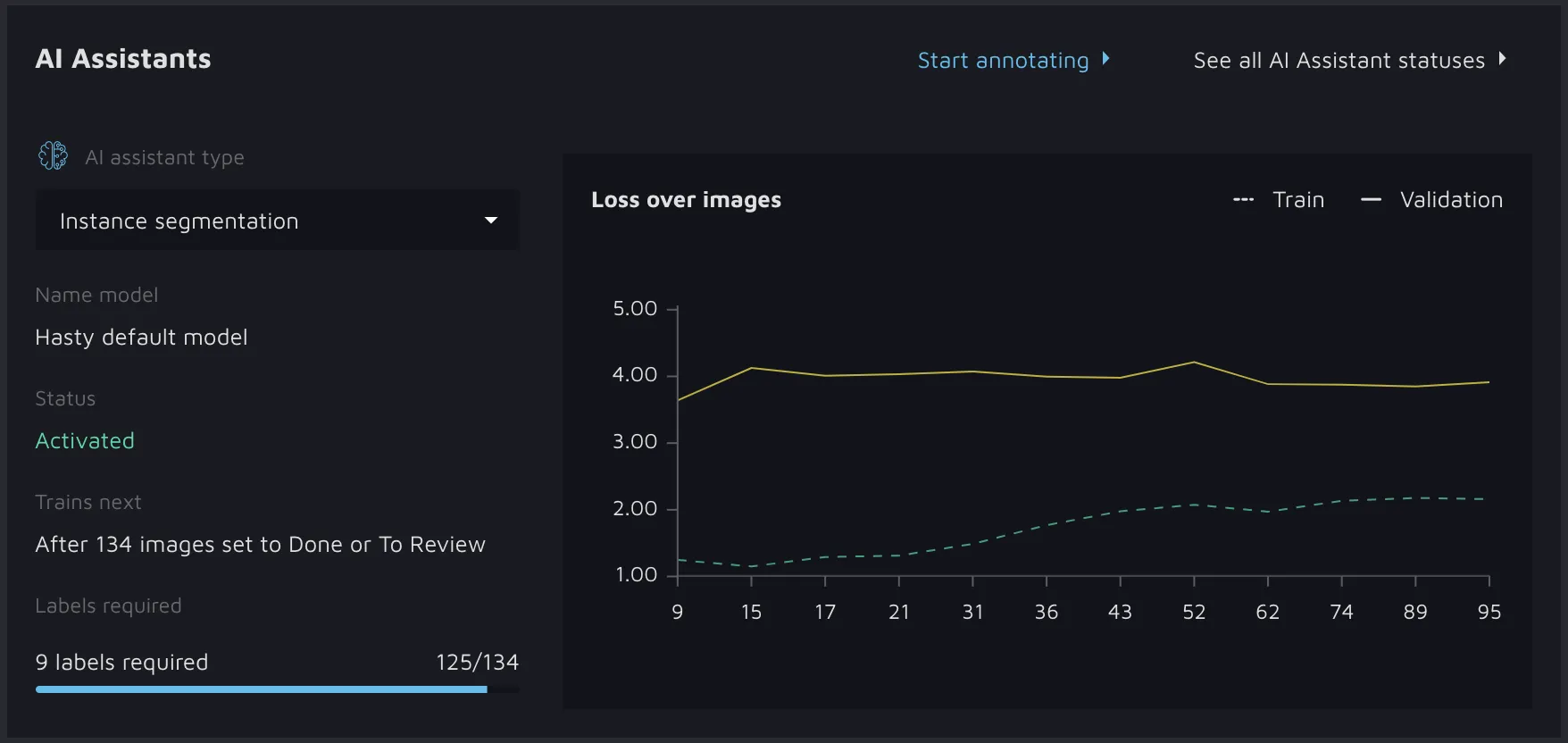
<figure><img src="https://wiki.cloudfactory.com/media/pages/docs/userdocs/projects/dashboard/5695cd38de-1684131898/7.webp" alt=""><figcaption><p>Example of the AI Assistants part</p></figcaption></figure>

In the AI Assistants section of the Dashboard, you can check every[ AI Assistant](#ai-assistants) provided by Hasty and find out such valuable information as:

* **The model's name:** if you have trained a custom model via [Model Playground](/model-playground/accessing-model-playground.md) and deployed it to be your AI Assistant - the name will change to your custom model's name. Otherwise, the model will be called the "Hasty default model";
* **The status of the model** shows you whether a model is activated, training (activated but with a new model in the works), failed (you shouldn't see this - if you do, contact us), or not activated (not enough data yet);
* The **Trains next section** tells you how many new annotations or images you need to annotate to train a new model (differs depending on model);
* The **Labels required** section shows you how close you are to triggering the retraining of the current model;
* Also, there is a **graph** (the type of the graph varies depending on an Assistant) that shows you how your model improves over time.

Additionally, there are two buttons:

* **Start annotating** button will directly lead you to the annotation environment;
* **See all AI Assistants statuses** button will lead you to the [AI Assistants status](about:/docs/userdocs/projects/ai-assistants-status-overview#ai-assistants-status-overview) page. You will see an overview of every AI assistant on one page, which is convenient as you will be able to skim through them without clicking on any buttons.

### Data Cleaning <a href="#data-cleaning" id="data-cleaning"></a>

As you might know, the Data Annotation process does not end when the last image is labeled because you must ensure that the annotations are correct. For this purpose, Hasty provides conventional [Manual Review](/quality/introduction-to-quality-control/manual-review.md) and innovative [AI Consensus Scoring](/quality/ai-consensus-scoring.md) features that you can access through the Data Cleaning section of the Dashboard. Therefore, the Data Cleaning section consists of two parts:

* Manual Review;
* AI Consensus Scoring.

#### Manual Review <a href="#manual-review" id="manual-review"></a>

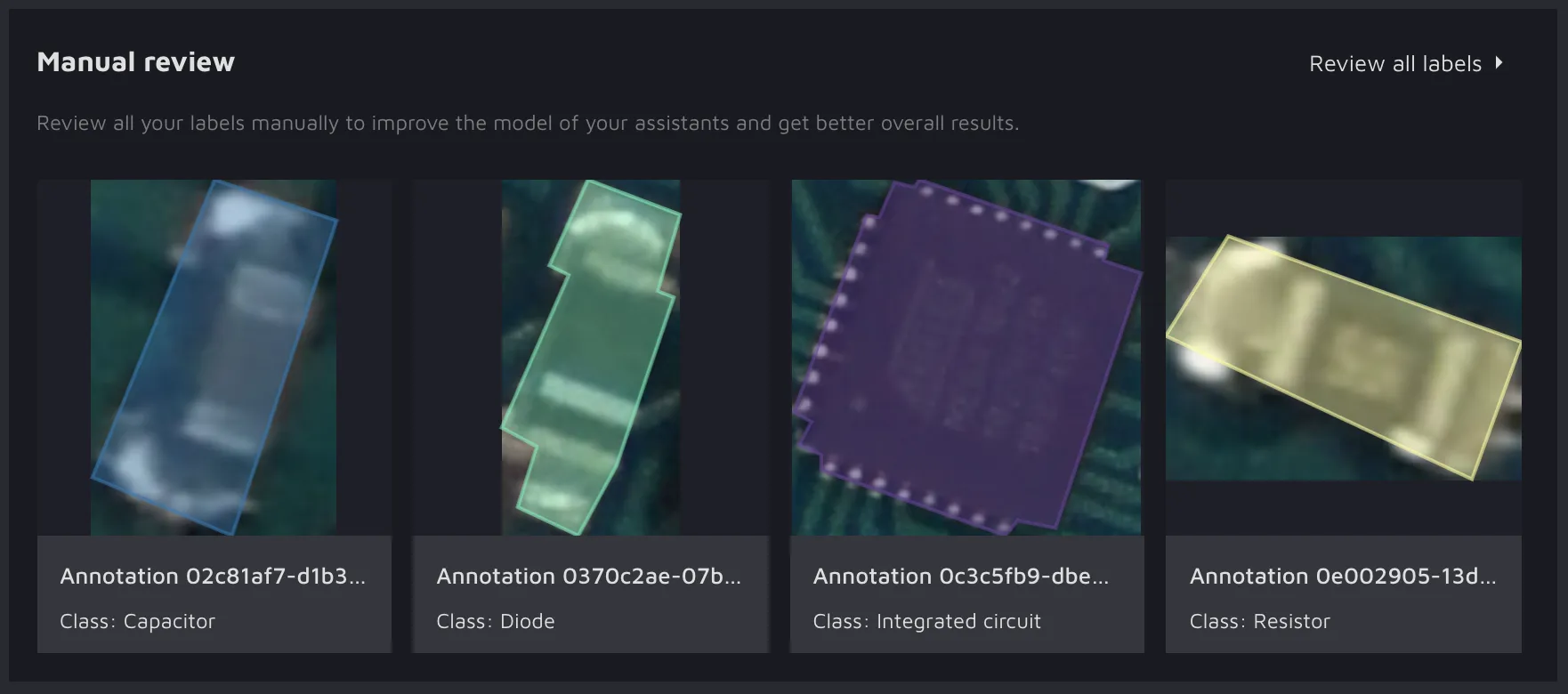
<figure><img src="https://wiki.cloudfactory.com/media/pages/docs/userdocs/projects/dashboard/03ce567b28-1684131898/8.webp" alt=""><figcaption><p>Example of the Manual Review part</p></figcaption></figure>

With the Manual Review feature, you can manually review all your annotations to find the potential mistakes, correct them, improve your assistants, and get better overall results. The preview of the labels will appear in the Dashboard as soon as you start annotating. Please click on the "Review all labels button" to fully get into the manual review.

#### AI Consensus Scoring <a href="#ai-consensus-scoring" id="ai-consensus-scoring"></a>

On the other hand, AI Consensus Scoring is the AI-powered quality assurance feature that aims to help you concentrate on fixing issues, not finding them. This is how the AI CS section will look like if you have not run it a single time.

<figure><img src="https://wiki.cloudfactory.com/media/pages/docs/userdocs/projects/dashboard/eced2c11ce-1684131898/9.webp" alt=""><figcaption><p>No AI CS runs = No results</p></figcaption></figure>

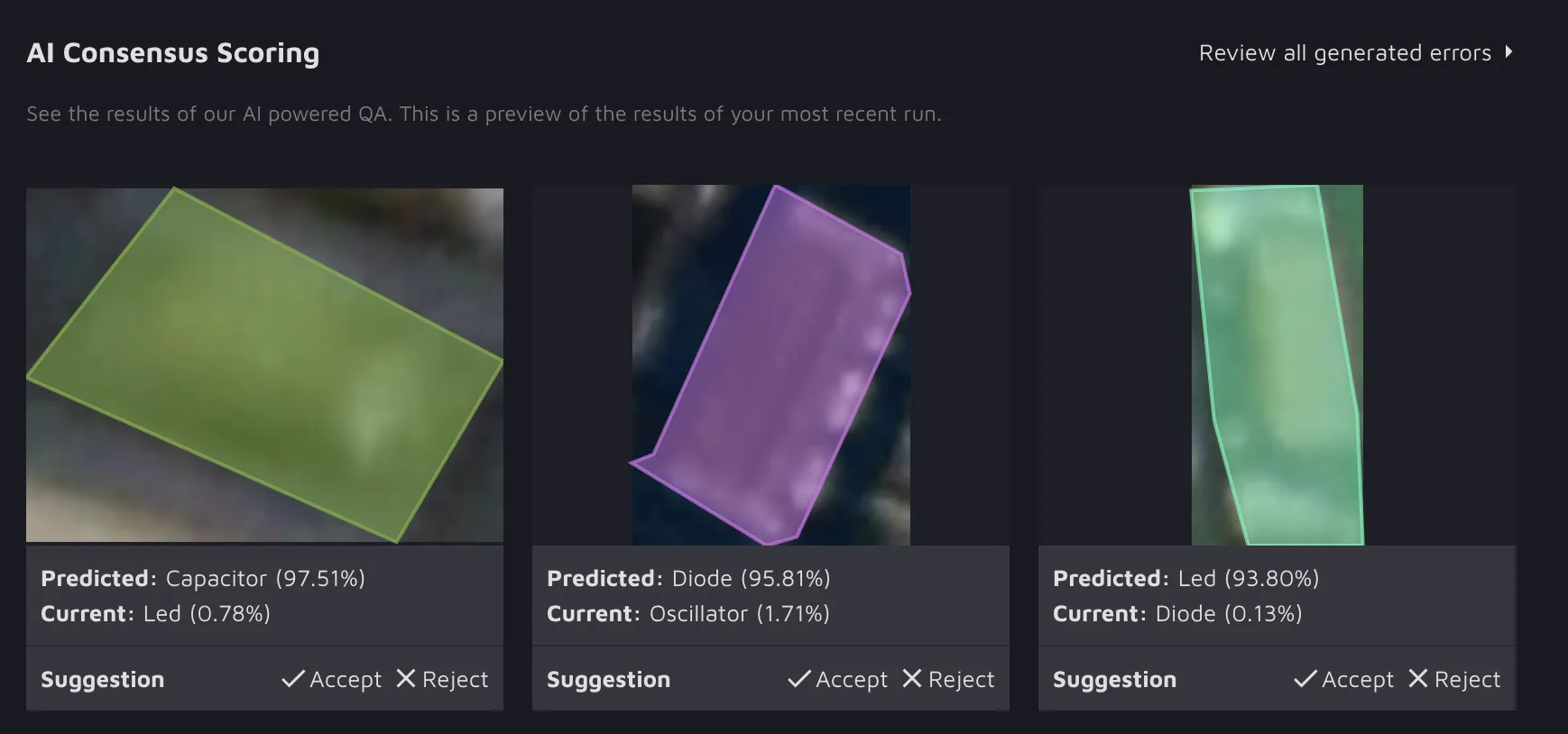
However, as soon as you use the feature, you will get a preview of the results of the most recent run.

<figure><img src="https://wiki.cloudfactory.com/media/pages/docs/userdocs/projects/dashboard/346ea9cdde-1684131898/10.webp" alt=""><figcaption><p>Example of the AI CS part</p></figcaption></figure>

At this point, you have two options:

* You can click the “Review all generated errors” button that will redirect you to the AI CS page and check the algorithm's suggestions there;
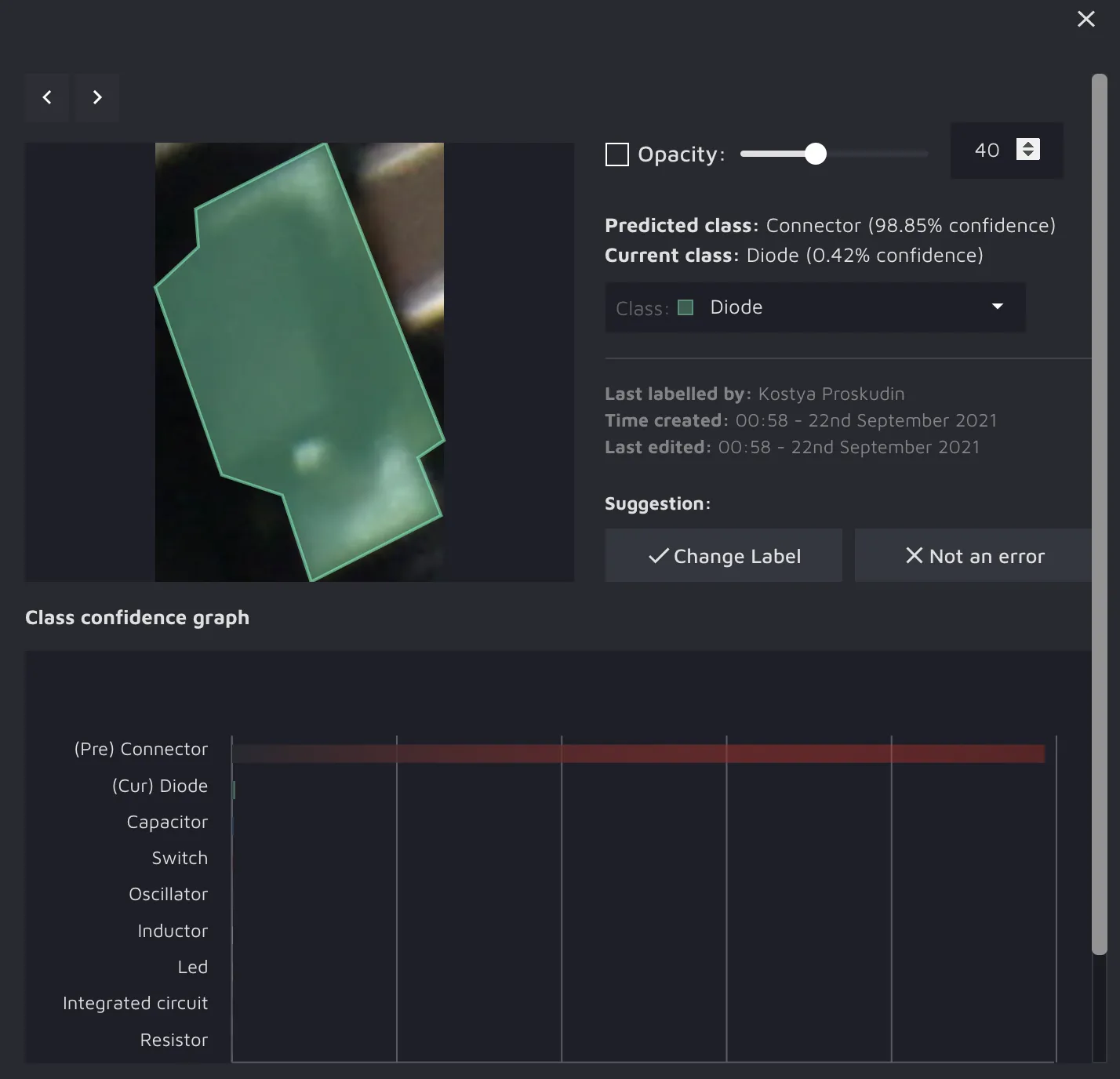
* Or you can stay in the Dashboard and directly accept, reject, or manually correct preview suggestions (to manually correct a suggestion - click on it and use the pop-up window).

<figure><img src="https://wiki.cloudfactory.com/media/pages/docs/userdocs/projects/dashboard/dc5930e532-1684131898/11.webp" alt=""><figcaption><p>That is what happens if you click on a certain suggestion</p></figcaption></figure>

{% hint style="info" %}
`As of today, that is all in terms of the Dashboard. However, in Hasty, we aim to improve the tool and make the workflow smoother and more accessible. So, the Dashboard capabilities might expand over time as the tool develops.`
{% endhint %}


---

# Agent Instructions
This documentation is published with GitBook. GitBook is the documentation platform designed so that both humans and AI agents can read, navigate, and reason over technical content effectively. Learn more at gitbook.com.

## Querying This Documentation
If you need additional information that is not directly available in this page, you can query the documentation dynamically by asking a question.

Perform an HTTP GET request on the current page URL with the `ask` query parameter:

```
GET https://docs.cloudfactory.com/projects/projects/dashboard.md?ask=<question>
```

The question should be specific, self-contained, and written in natural language.
The response will contain a direct answer to the question and relevant excerpts and sources from the documentation.

Use this mechanism when the answer is not explicitly present in the current page, you need clarification or additional context, or you want to retrieve related documentation sections.